
I'm Shira.
I love talking to users and solving their hard, weird, and pesky problems. I can do both qualitative and quantitative analysis. I can write. I can use most prototyping tools and make pretty things, but I’m just as interested in the process of writing the brief as executing it.
I have a degree in math, experience in operations and in journalism, and I'm working towards a master's in UX Design.
Also, I'm looking for work in the Baltimore/DC area, or remotely.
I'm Shira.
I love talking to users and solving their hard, weird, and pesky problems. I can do both qualitative and quantitative analysis. I can write. I can use most prototyping tools and make pretty things, but I’m just as interested in the process of writing the brief as executing it.
I have a degree in math, experience in operations and in journalism, and I'm working towards a master's in UX Design.
Also, I'm looking for work in the Baltimore/DC area, or remotely.
Better Google For the Non-Typical Googler
TL;DR
My redesign of the Google search result reduces cognitive load for expert users, eliminates duplication of effort, and lowers the cost - in time and frustration - of interruptions.
The following is a mini case study of my process of designing a single component in a complex digital dashboard.
Hide Your Bodies Elsewhere
Marketing and SEO experts love to say that the best place to hide a body is the second page of Google. Murderers beware: you might want to consider Bing.
I say this because I recently worked on a product whose users regularly visit page 10 of their Google search queries. These users, who work for an innovative startup, scan hundreds of results for a given query, hunting down specific data, which they later compile into reports. They’ve been trained to do this manually, but the plan is to eventually do much of the process automatically.
In the meantime the company has leveraged natural language processing and other tools to try to speed up their users’ process. The problem is that right now these tools are mostly available through a command line interface. The users, who never used such an interface before, find it even slower than not using the tools at all.
That’s where I came in.
I was hired to conceptualize and invent a user interface that would make these tools available to users in a form that they’d prefer to use over old familiar Google. In short, my task was (and this is a direct quote from one of our early meetings) "to create a better Google”.
Easy, right?
Meet Kyle!
Kyle, a typical user, enters a search query and starts scanning the information that Google provides for each result. He systematically goes through the list from the top to the bottom of the page. For each result, he asks himself: Does this page have useful information? If the answer is “maybe”, he right clicks the title and opens the page in a new tab. If the answer is “no”, he keeps scrolling.
Suppose Kyle’s phone rings and he takes the call. While on the phone he gets up from his desk and paces the room. After 5 minutes the call ends and he sits back at his laptop to continue working. But now he can’t remember exactly where he had left off.
Looking at the search results page, how does he know which results he’s already made a judgment on?
The purple hyperlinks must be already open in other tabs (Kyle knows that blue + “read” = purple), and since he always works top to bottom, he must have already gone through any result that appears above a purple result. But what about all the blue results below the last purple result? For each one of them, Kyle asks himself (possibly for the second time): “Does this page have useful information?“
Kyle’s decision tree looks like this:
Decision Tree #1: To Click or Not to Click?

30 minutes into this process Kyle is on page 10 of the Google search results with more than 30 tabs open. His browser window has a case of tab overload: so many tabs open that nothing, not even the favicon, is visible in each one.

Worried about his laptop’s performance, he decides to stop going through the search results for now, and instead sift through the tabs to cull his list further. Starting from the left side of the tab bar, Kyle clicks into each tab and decides whether to close it or keep it open.
He’s interested in quantitative data, so he scans the page for numbers attached to units, like dollar figures or metric tons. If he doesn't quickly see those, he looks for charts and graphs - any visual representation of data. Lastly, if he sees no charts either, he reads the first few sentences to see if it seems useful. If not, he closes the tab and moves on.
If Kyle is interrupted by another phone call in the middle of this process, when he returns to his work he may not remember where he left off. Is the open tab is one he already decided to keep open, or one that he hasn’t made a decision on yet? Again, he may have to duplicate his efforts.
His decision tree looks like this:
Decision Tree #2: Keep Or Close Tab?

The Anatomy of A Google Search Result
Kyle makes his initial judgement based solely on what Google puts in front of him. Most Google search results look like this:

Since my job was to create a better Google, the minimum requirement was for my solution to be at least as good as Google. Therefore, I decided that my solution would display everything that the user can see on Google: the URL, title, and snippet.
But what else?
The Way Things Were

Using natural language processing, my clients were able to provide their users the following information for every result:
Output #1: The entirety of the text appearing on the page, separated into a collection of sentences.
Output #2: A list of all of the URLs in the page (see screenshot above).
Output #3: Using a process called Named-Entity Recognition (NER), they provided a list of the words appearing on the page that belong to any of 18 categories such as people, organizations, currency, etc. For example, in the sentence “Alexander Hamilton had only 5 shilling to his name when he first enrolled in New York City’s King’s College, which later became Columbia University”, the NER engine would return:
-
People: Alexander Hamilton
-
Money: 5 shilling
-
Organizations: King’s College
-
Organizations: Columbia University
-
Geographical Entity: New York City
This information was presented in the form of three very long lists: one with sentences, one with links, and one with pairs of named-entities and their given categories (e.g. “People: Alexander Hamilton” is one pair) - we call each such pair an NER.
User were not using these tools mostly because they didn't want to type into the command line interface so they could get access. But even if that wasn't an obstacle - these lists were not particularly insightful to them. It was still easier for Kyle to click into a page and scan it for dollar signs, for example, than to go down the list of NERs looking for the word “Money”. But, in fact, the answers to Kyle’s questions, or their close proxies, are already encoded in this data.
I needed to figure out how to make Kyle see this right away.
Better Google
In formulating a solution, I examined Kyle’s second decision tree, going through each of his questions and finding their answers in the data.
Q1: Is this page rich in quantitative information?
We can use the NERs to answer this question. The data Kyle is interested is captured by the following NER categories:
-
Percent (percentage, including %)
-
Money (monetary value, including unit)
-
Quantity (measurements, as of weight or distance)
-
Cardinal (numerals that do not fall under another type)
We called any NER that falls into one of the four categories above a “quant NER”, or simply “quant.”
What about the other NERs? Should/would users click on a page if they knew that it has more mentions of organizations, people, and products, etc? Is the total number of NER also a good indicator of a high quality result? We decided together that yes, it was, or at least - we'd like to make that number available and see what users make of it. To try to compensate for possible repetitiveness in the results, we decided to include the number of unique NERs as well as the total number.
Q2: Are there any charts or graphs with data on this page?
I couldn’t directly answer this question, but I could give a partial answer. In the list of links that my clients extracted from each result, we could use the extension (e.g. jpg or png) to filter for images. We could then tell the user how many images are on the page, and perhaps even load them onto the search results page (I did this in later iterations). If a page had 0 images, the answer to Q2 is definitely “no”. If the number of images was greater than 0, the answer is “maybe”.
Q3: Reading the first few sentences, does this page seem relevant to my purposes?
While I can’t really answer this question for Kyle (yet - my clients are working on ML models to do just that - more on this in one of my next case studies), we can make it much faster for him to answer it himself: all we have to do is present the first 2-4 sentences from each page on our new dashboard’s search results page.
I also wanted to address two clear pain-point in Kyle’s process using Google:
Pain-point #1: Any interruption to Kyle’s workflow results in increased mental load and duplication of effort.
This is because he can’t edit the list of results as he goes through it. Clearly, Kyle needs a way to hide results he’s decided aren’t worth clicking as soon as he’s made that decision. Additionally, while his brain is pretty well-trained to ignore purple links, they still clutter his view. Since he ignores them anyway, there is no reason to display the “good” results in the list either, after he’s made his decision about them.
Solution: Kyle needs to remove from the list any result he’s made a decision on, whether that decision is favorable or not.
Pain-point #2:The tab bar is not a good place to keep a list.
Since he can’t see any information at all about the contents of each page from the tab bar, Kyle can’t prioritize them or sort through them. Until he gets to the last 10 or so tabs, it’s hard for him to keep track of his progress. And again, any interruption to his workflow can result in duplication of effort.
Solution: Kyle needs a better way to keep track of search results he wants to look into later.
The Design
After much sketching, flowcharting, mindmapping, and a couple of iterations, this is how I designed a single search result in “Better Google”:

The Design - Annotated

The Design - On the Page

The Design - In Action
After the user sends a result to the trash, a notification with an "undo" button appears on the bottom left of the screen, and stays for 5 seconds. There is also an area of the dashboard where the user can find and undo whatever he has moved to the trash.

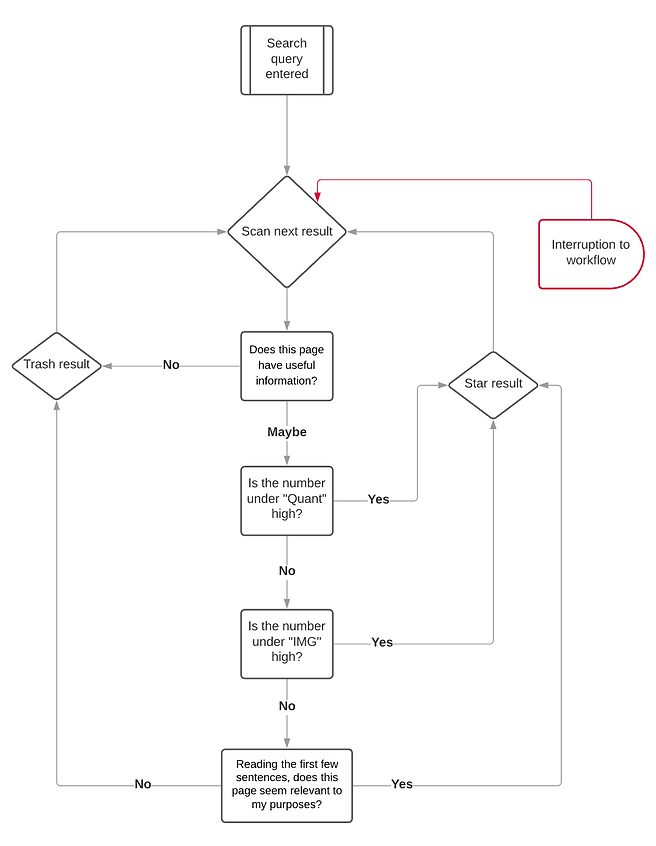
New Decision Tree: Star or Trash?
With this interface, Kyle's previous decision trees collapse into one. Now that some of his decision factors have been parameterized, he can sort and use filters to further cut down mental load. Either way, his process is simplified:
The Missing Pieces
You might’ve noticed that I left out annotations for quite a few functions of my designs. In fact, Kyle's work includes a whole set of tasks that I haven't mentioned yet, and the dashboard has a whole other pane for this purpose - more on that in the next installment, which you can read here.